
Split Multi-Page PDF Drawings Window
A single PDF file often holds an entire drawing set. When the drawings being added to a project include PDF files with more than one page, this window is displayed so you can choose which of them to split into one drawing per page.
It is displayed after you press the "Add" button in the Drawing Scan Window, and also when a new project copies drawings in from a folder.
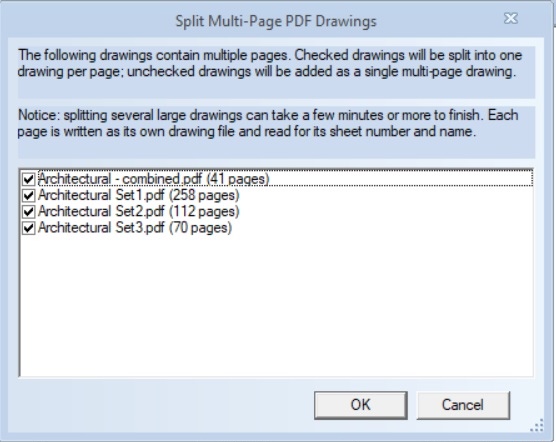
Figure 1: The Split Multi-Page PDF Drawings Window
Drawing List - Each multi-page PDF being added is listed with its page count. Check the drawings you want split:
- Checked - The drawing is split into one drawing file per page. The pages are written into the project folder, in a sub-folder named after the original file, so the Drawing Tree shows them grouped under a folder you recognize. The original file is left where it is and is not added to the project.
- Not checked - The drawing is added whole, as a single multi-page drawing. You move between its pages in the drawing window as before.
OK - Press this button to split the checked drawings. All of the drawings you selected are then added to the project - the checked ones as their individual pages, the rest whole.
Cancel - Cancel means "add these whole". No drawing is split, but every drawing you selected is still added to the project. Use the Cancel button on the Drawing Scan Window if you don't want the drawings added at all.
Naming the Pages
Each page is read for its sheet number and name, taken from the title block or from the PDF's bookmarks, and they become the page description shown in the drawing list and drawing tree. A page whose sheet number and name can't be read is described by its page number followed by the name of the document it came from, for example "012 CHANNELSIDE CDs".
Pages are named whether or not the drawing was split, so a drawing left whole arrives with its pages named too. The naming is done once, here, and stored with the project - opening the drawing later doesn't repeat the work.
Note: Drawings that are already in a project are left as they are. This naming applies to drawings as they are added.
Progress
Splitting is the slow part of adding a drawing set: every page is written as its own drawing file and then read for its sheet number and name. A progress window shows the drawing being processed with its position in the batch, the page being written, and the sheet name that page was given.
Splitting can't be stopped once it has started. A half-split document would be a drawing set with an arbitrary number of sheets missing, and nothing afterwards could tell that from a set that was always that short.
Note: Splitting several large drawings can take a few minutes or more to finish.