
PlanWell Drawing List Window
This window displays a list of all the PlanWell drawings in the current project. Each time you select an issue, discipline or drawing set from the Issue Tree in the PlanWell Toolbar, the drawings included in the selection are added to the PlanWell Drawing List.
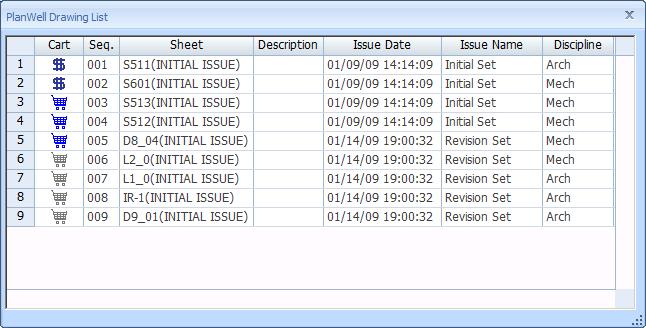
Figure 1: The PlanWell Drawing List Window
The window is filled by the drawing list. This list shows all the measurements in the current project.
List Columns
At the top of the list are the column headings. The columns are highly configurable:
- You can change the width of a column by dragging the line at the end of the column heading. The column resizes as you drag it.
- You can change the order of the columns by dragging a column heading to the left or right. A line marks where the column will land.
- You can delete a column by right-clicking on the column heading and selecting "Delete" from the context menu.
- You can insert a column by right-clicking on the column heading, selecting "Insert column" from the context menu and selecting the desired column from the list.
- You can add columns to the end of the list by right-clicking the square area above the vertical scroll bar. Select "Add column" from the context menu, then select the desired column from the list.
The following columns are available:
- Shopping Cart Indicator -
This column contains an icon indicating the purchase status
of the drawing. It will be one of the following:
 -
The drawing is NOT in the cart and has NOT been purchased.
-
The drawing is NOT in the cart and has NOT been purchased.
 -
The drawing is IN the cart but has NOT been purchased.
-
The drawing is IN the cart but has NOT been purchased.
 -
The drawing HAS been purchased.
-
The drawing HAS been purchased.
If the drawing has NOT been purchased, you can click on the icon to add or remove the drawing to the cart. - Sequence - This is the drawing sequence number, the sequence in which it was added to the PlanWell project.
- Sheet Name - The sheet name for the drawing. Multiple issues of the drawing will have the sheet name.
- Description - A description of the drawing.
- Issue Date - The date of the issue containing the drawing.
- Issue - The name of the issue containing the drawing.
- Discipline - The name of the discipline or trade that is the main user of the drawing.
Sorting Rows
You can sort the rows by the value of a particular column. Right click on the column heading and select "Sort by XXXX, Ascending" or "Sort by XXXX, Descending">
Resizing the PlanWell Drawing List Window
You can change the size of the window by dragging the edges or corners of the window or the Resizing Control in the lower right-hand corner of the window. The list will expand or contract to adjust to the new window size. Dimension will remember the window size and re-use it as you close and re-open the window.